
Halomedis Print
The queue ticket comes straight out of the printer the moment a patient takes a number - no PDF pop-up, no Print button. Install it once on the kiosk or registration desk computer and the Halomedis EMR detects it automatically.
For Halomedis EMR users · Windows 10 & 11 · Thermal and regular printers
Built for front-desk staff, not technicians
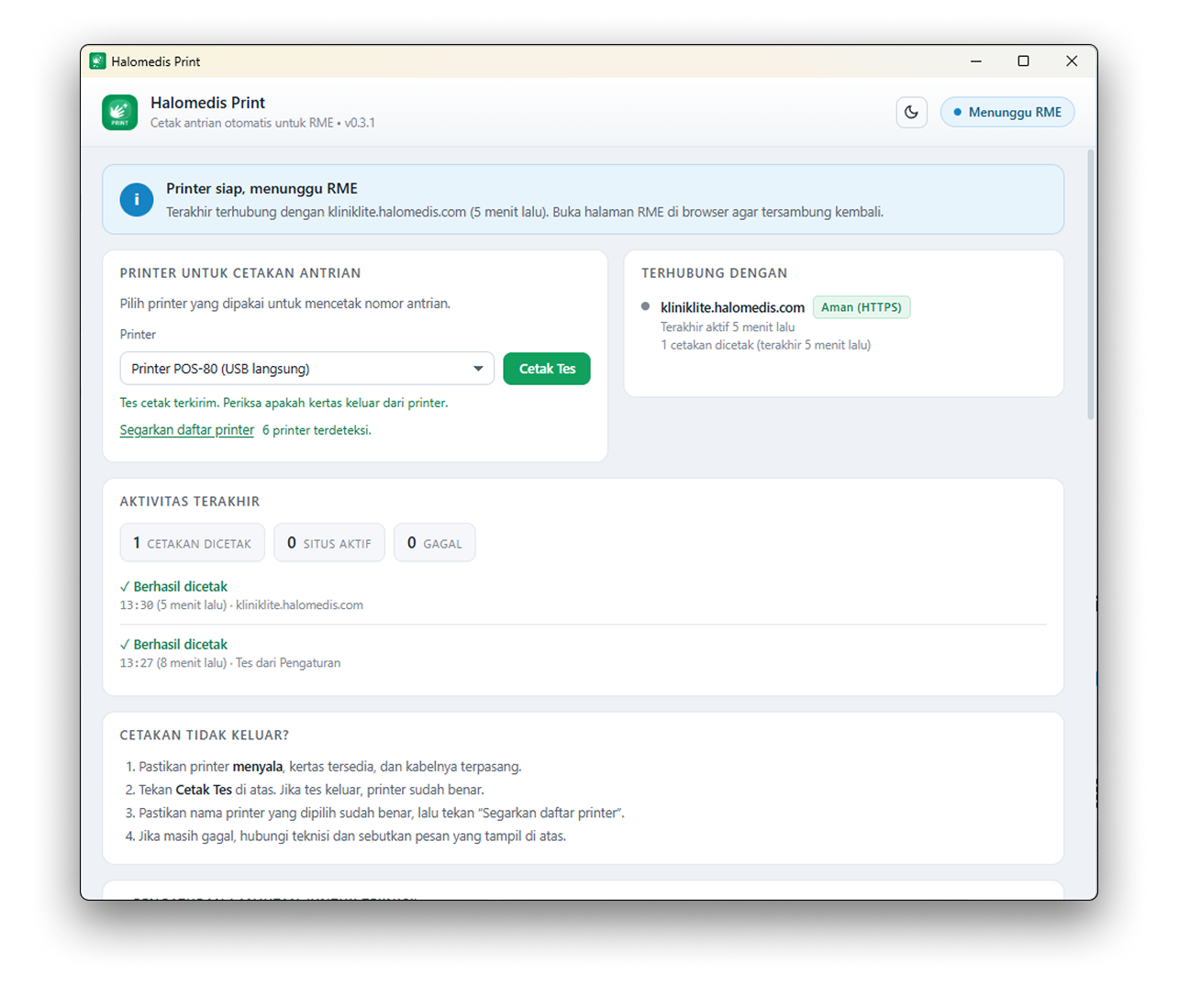
One small window that answers what matters most: is the printer ready, which EMR is connected, and what was printed last.
- 1
Status banner
Green means ready to print, blue means the printer is ready and waiting for the EMR to open, yellow means something needs checking - always with what to do next.
- 2
Queue ticket printer
Pick a printer and press Cetak Tes (Print Test). Virtual printers such as PDF or OneNote are flagged so nobody picks the wrong one.
- 3
Connected to
The EMR address open in the browser, an Aman (HTTPS) secure label, when it was last active and how many tickets it printed.
- 4
Recent activity
A history of successful and failed prints with the time and source. When a print fails, a plain-language explanation and a suggested fix appear.
- 5
Ticket not printing?
Four checks staff can work through on their own before calling a technician.
No pop-up, no Print button
Patients at the self-service kiosk never have to deal with a PDF window, and registration staff can move straight on to the next patient.
Without Halomedis Print
- 1The patient takes a queue number
- 2A PDF pop-up opens in the browser
- 3Press Print, then confirm in the print dialog
- 4Close the pop-up to get back to the kiosk screen
With Halomedis Print
- The patient takes a queue number
- The ticket comes straight out of the printer
- The kiosk screen is ready for the next patient
No pop-up
Prints straight away, with no Print dialog
58 / 80 mm
USB thermal printers, even without a driver
Automatic
Falls back to the PDF pop-up if the app is off
Local
Only accepts requests from the computer itself
Ready to print in four steps
All it takes is one small app on the computer connected to the printer. No extra hardware and no special settings in the EMR.
Install on a Windows PC
Install it on the kiosk or registration desk computer connected to the printer. It runs in the system tray and can start automatically with Windows.
Choose a printer & print a test
Choose the queue ticket printer and press Cetak Tes (Print Test). If paper comes out, the printer is set up correctly.
Connect the EMR
Enter your Halomedis EMR address, press Buka RME (Open EMR), then allow that address once. From then on only that address can print.
Print automatically
When a patient takes a number or staff save a registration, the queue ticket prints straight away on that computer's printer.
Small in the system tray, dependable at rush hour
Everything it takes to get queue tickets out on time without getting in the staff's way.
Silent printing
The queue ticket PDF from the EMR goes straight to the printer - no preview, no pop-up and no browser Print dialog.
Auto-detect & fallback
The EMR checks for the app in under a second. If the app is off or the printer fails, the EMR opens the PDF pop-up as before, so the ticket can still be printed.
Thermal printers without a driver
58 mm and 80 mm USB thermal printers (e.g. POS-58, POS-80) are detected as “USB langsung” (USB direct), printed in ESC/POS mode and the paper is cut automatically.
Only approved EMR addresses
The EMR address has to be approved once on that computer. Other sites that try to print are refused, and the app only accepts requests from the computer itself.
No patient data left behind
The PDF file is deleted after printing. Reprints always come straight from the EMR, so no patient data is left on the computer.
Status in plain language
Colour-coded banners, the connected EMR address and a print history with clear suggestions when something fails.
Orderly print queue
When several numbers are taken in a row, tickets are sent one at a time so they never collide at the printer.
Status icon in the system tray
The Halomedis Print icon next to the Windows clock gets an orange badge when something needs attention. Hover over it for a summary.
Light & dark mode
Follows the Windows theme and can be switched with one button at the top of the window.
Already live at the kiosk & registration desk
These Halomedis EMR pages use Halomedis Print automatically whenever the app is installed on the computer that opens them.
| EMR page | What gets printed |
|---|---|
| Self-service kiosk (general, BPJS, combined) | Queue ticket after the patient registers themselves |
| Pharmacy queue kiosk | Pharmacy queue ticket |
| Registration desk: returning & new patients | Queue ticket after staff save the registration |
| Queue list in the registration sidebar | Reprint any of today's tickets, with the same number |
Install the app on every computer that prints: the kiosk PC and the registration desk PC each need Halomedis Print. Computers without it keep using the PDF pop-up as before.
Ready for Windows
One installer for both kiosk and registration desk computers. Setup takes just a few minutes.
Windows
.exe installer
Windows 10 or 11, 64-bit
Need help installing? The Halomedis team can walk you through it on WhatsApp.
Questions about Halomedis Print
What people ask most before installing the app at the kiosk and registration desk.
Want queue tickets to come straight out of the printer?
Our team can install the app, choose the printer and connect it to the EMR at your kiosk and registration desk.